

Description
Details
One gateway. Cellular Internet, Wi-Fi 6 and wired networking.
Build your network around dual-band Wi-Fi 6 and five Gigabit Ethernet ports. Start with the router-only configuration for a wired WAN, or select the Quectel RM500U-EA option to add European 5G connectivity. Choose the modem in the configuration field above.
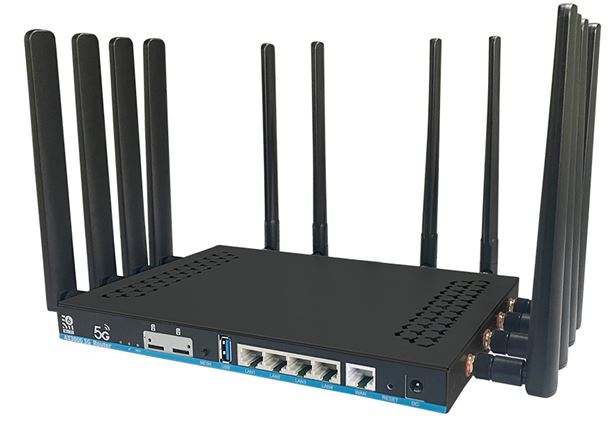
A practical gateway for places that need flexibility.
The value is in a configurable path: routing hardware, local Wi-Fi and Ethernet, with your selected cellular modem for a mobile WAN. Choose the operator and placement for the installation, then configure the connection and local network to suit your users.
The router hardware, clearly specified.
| Router / supplied modem | ZBT Z8102AX-M2-T router-only default; choose the RM500U-EA / RM500UEAAA modem option for European cellular connectivity |
|---|---|
| Processor | MediaTek MT7981B; dual-core ARM Cortex-A53, up to 1.3 GHz |
| Wireless chipset | MediaTek MT7976CN |
| RAM / primary flash | 1 GB DDR4 / 128 MB SPI NAND |
| Wi-Fi | 802.11ax Wi-Fi 6, concurrent 2.4 GHz and 5 GHz; compatible a/b/g/n/ac modes |
| Wi-Fi class | AX3000 class; manufacturer figures approximately 573–574 Mbit/s at 2.4 GHz and up to 2402 Mbit/s at 5 GHz |
| Ethernet | 1× 1000 Mbit/s WAN + 4× 1000 Mbit/s LAN |
| Modem expansion | Two M.2 modem positions with USB 3.0 bus support. Choose the RM500U-EA option to supply one modem; plan any further expansion for the exact delivered revision. |
| SIM platform | Nano-SIM interfaces; the manufacturer describes two Nano-SIM positions and eSIM provisions at platform level. Set up the SIM associated with your selected modem. |
| Antenna system | 12 detachable external antennas in the illustrated Z8102AX-M2-T platform, covering cellular and dual-band Wi-Fi paths |
| Controls / connection | Reset and Mesh controls; DC 5.5 × 2.1 mm input connector |
| Firmware platform | Factory OpenWrt-based software; select upgrade images by the exact hardware revision and flash layout |
This is the Z8102AX-M2-T platform. Match any expansion parts and firmware to the delivered revision. Optional eMMC storage and additional modems are separate platform configurations.
Choose the RM500U-EA option for European 5G networks.
The optional Quectel RM500U-EA modem supports 5G SA and NSA, with LTE fallback. Match its regional bands to your operator and data plan. The modem’s role is the cellular connection; the ZBT platform distributes that connection to your Ethernet and Wi-Fi devices.
| 5G NR SA | n1 / n3 / n5 / n7 / n8 / n20 / n28 / n38 / n40 / n41 / n66 / n77 / n78 |
|---|---|
| 5G NR NSA | n1 / n3 / n7 / n28 / n38 / n40 / n41 / n77 / n78 |
| LTE FDD | B1 / B2 / B3 / B4 / B5 / B7 / B8 / B20 / B28 / B66 |
| LTE TDD | B38 / B40 / B41 |
| WCDMA | B1 / B2 / B5 / B8 |
See the RM500U-EA module specifications and integration guide.
Understand each part of the connection.
Local Wi-Fi link rates
5 GHz: up to 2402 Mbit/s
2.4 GHz: approximately 574 Mbit/s
Theoretical radio link rates, shown separately. AX3000 is the combined Wi-Fi class; application throughput depends on the client, channel width, interference and traffic.
With the RM500U-EA option selected, the modem radio has its own theoretical 5G limits: up to 2.6 Gbit/s downlink in NSA mode, or 2 Gbit/s in SA mode. A single Gigabit Ethernet connection negotiates at 1 Gbit/s, so evaluate each part of the route separately. For an installation test, start with one wired computer, then compare Wi-Fi clients and placement.
Choose placement by signal quality.
Position the router where the mobile signal is clean and the enclosure can ventilate. Compare RSRP, RSRQ and SINR together with download, upload and packet loss. Keep the cellular and Wi-Fi antenna connections matched to their labelled roles. Indoor obstacles, feeder losses and local interference all influence the result.
From box to working network: a straightforward sequence.
- Prepare your selected Internet source.
For a wired WAN, prepare the Ethernet uplink. With a cellular modem selected, use an active data SIM suitable for router use, keep the APN and PIN ready, and confirm coverage and bands for the site. - Connect antennas and your selected modem SIM with power off.
Fit the supplied antennas to their labelled cellular/Wi-Fi positions, tighten gently and insert the SIM into the interface associated with the installed modem. - Power up and connect by Ethernet.
Use the supplied router power adapter and a LAN port for the first configuration. Allow the device to complete startup before opening its management interface. - Secure the local network.
Use the management address and login instructions delivered with the unit. Set a strong administrator password and secured Wi-Fi credentials before connecting everyday devices. - Configure the cellular connection.
Select the installed RM500U-EA, enter the correct APN and verify SIM readiness, network registration and the data session. Keep the initial band selection appropriate to the operator. - Validate the installation.
Confirm wired Internet, DNS and a Wi-Fi client connection. Check signal measurements and sustained traffic, then save a configuration backup.
Use the cellular modem as the selected WAN source, or configure the wired WAN for your network. Automatic failover, dual-modem routing and load balancing depend on the installed firmware and a correctly configured policy. Record and test that policy before relying on it in service.
An OpenWrt-based platform with a careful upgrade path.
Start with the supplied configuration.
The manufacturer supplies an OpenWrt-based routing platform. Use the installed web interface to configure networking and the modem. Before upgrading, record the exact Z8102AX hardware revision, installed firmware, flash layout and modem firmware, and export a working configuration backup.
OpenWrt and ROOTer development options
The OpenWrt project contains a dedicated ZBT-Z8102AX v2 target in the MediaTek Filogic platform. Choose the device profile for the exact board and storage layout; a factory-install image and a sysupgrade image have different purposes. ROOTer is an additional modem-focused firmware route for model-matched builds. Confirm a current compatible build and its installation instructions before changing the supplied software.
Keep routing firmware and modem firmware separate.
A router OS upgrade and a Quectel modem update change different components. Save the starting versions and carry out one supported change at a time. Confirm Ethernet, Wi-Fi, SIM registration and the mobile data path after each change. Factory recovery should follow the procedure for the exact device revision.
Build a balanced antenna and accessory configuration.
The Z8102AX-M2-T provides a platform for additional modem configurations. Select a second module by mechanical fit, USB interface, power, host-driver support, SIM routing and RF connector type. Plan the pigtails and antennas as part of the same change. The RM500U-EA option includes one modem. The base selection is Router only.
For an external cellular antenna, match the operating bands, connector gender and cable loss to the installation. Keep the RF cable short where practical and route it without strain. Select Ethernet cabling for a stable Gigabit link to your wired devices.
Cellular antennas · RF cables and pigtails · Discuss another modem configuration
A useful diagnosis starts with the right question.
| Router starts, Internet setup pending | Confirm the selected WAN source, SIM readiness and APN. Check modem registration before changing Wi-Fi settings. |
|---|---|
| Mobile connection works, a client has no Internet | Check that the client is on the intended LAN/Wi-Fi network, receives an address and uses the correct gateway and DNS. |
| Mobile speed changes through the day | Compare the operator band, signal quality and time of test using a wired client. Try a better router position and record the result. |
| Wi-Fi performance varies by room | Compare 2.4 and 5 GHz clients, channel conditions and the distance/obstacles to the router. Place the router for both coverage and mobile signal. |
| Issues follow a firmware change | Check the device profile, storage layout and modem packages. Use the documented backup/recovery path for that exact revision. |
When contacting support, include the router label, firmware versions, modem identity, operator/APN, connection type and signal readings. Those details help turn a general symptom into a precise next step.
Choose the complete configuration with confidence.
How do I choose the modem configuration?
The default selection is Router only. Choose Quectel RM500U-EA in the configuration field to include one modem. The displayed price updates to your selected configuration. Select your operator SIM and service separately.
What does AX3000 mean here?
It is the Wi-Fi class combining approximately 574 Mbit/s at 2.4 GHz and up to 2402 Mbit/s at 5 GHz. Those are theoretical radio link rates. A device uses the band and link supported by that client.
What do I need to start using cellular Internet?
An active compatible operator SIM, the APN and a location with suitable coverage. Follow the antenna, power and first-login steps in the setup guide.
Can I use the wired WAN as well?
Yes. The router has a Gigabit WAN port and four Gigabit LAN ports. Select and configure the Internet-source policy in the installed firmware.
Can I expand the modem configuration later?
The platform provides two M.2 modem positions. Choose additional parts against the exact hardware revision, power budget, USB/driver support, SIM layout and antenna connections, then test the complete configuration.
Can this router run OpenWrt?
The platform uses factory OpenWrt-based software, and the upstream project has a ZBT-Z8102AX v2 target. Select the profile and installation procedure for the exact hardware and flash layout supplied.
Keep the setup information with your installation.
Give your network a flexible 5G foundation.
Choose Router only for your wired-WAN network, or select the RM500U-EA option for European cellular connectivity alongside dual-band Wi-Fi 6 and Gigabit wired devices. For another operator region or a specific modem/antenna configuration, send us the requirements before ordering. Estimated dispatch: 2–3 days, subject to current stock and checkout delivery information.
Additional
Additional Information
| Brand | ZBT link |
|---|---|
| firmware | No |
Tags
Reviews
Having a questiion ?? Contact us - info at 524wifi.com !!
-
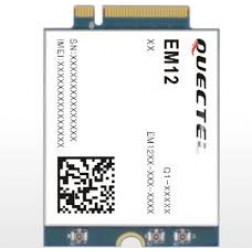 EM12-G EM12GPA-512-SGAD Quectel LTE-A M.2 - optimized LTE advanced 3 x CA Cat 12 Module ( global ), 5G+ ready
$159.00
EM12-G EM12GPA-512-SGAD Quectel LTE-A M.2 - optimized LTE advanced 3 x CA Cat 12 Module ( global ), 5G+ ready
$159.00 -
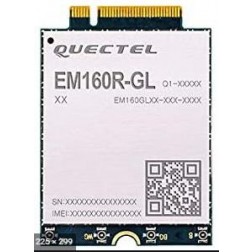 Quectel EM160R-GL EM16-G Quectel LTE-A M.2 IoT/M2M DL 5xCA Cat 16 Module ( global ) , 1GBit / 150MBit 5G+ ready
$149.00
Quectel EM160R-GL EM16-G Quectel LTE-A M.2 IoT/M2M DL 5xCA Cat 16 Module ( global ) , 1GBit / 150MBit 5G+ ready
$149.00 -
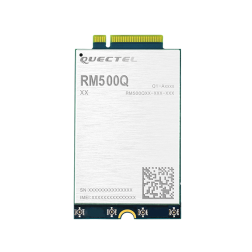 Quectel RM500Q-AE 5G NR global module 3GPP Release 15 NSA/SA operation, Sub-6 GHz M.2 socket
$229.00
Quectel RM500Q-AE 5G NR global module 3GPP Release 15 NSA/SA operation, Sub-6 GHz M.2 socket
$229.00